MCP Setup
5 simple steps with screenshots. Works on Windows and macOS.
Easiest: Claude.ai (web) — no installs
No Node.js and no config files. Connects right in the browser via OAuth. Limits are shared with your API key.
Create a key in the dashboard
Open the dashboard → Create key. Copy the MCP URL, OAuth Client ID and Client Secret (or click "Download JSON") — shown only once.
Open Connectors in Claude
In Claude click Customize (or Settings) in the left panel → Connectors.

Add custom connector
Click + next to Connectors → Add custom connector.

The connector form appears
Fields: Name, Remote MCP server URL and Advanced settings with OAuth Client ID / Secret.

Paste URL and credentials → Add
Name: AUTOMOTO-MCP · URL: https://mcp.automoto.ai/mcp. In Advanced settings paste the Client ID and Secret from step 1 → Add.

Click Connect
The AUTOMOTO-MCP connector appears in the list. Click Connect.

Approve access
Approve access in the authorization window. You will see Connected to AUTOMOTO-MCP and the list of available tools.

Enable it in the chat
In the chat click + → Connectors and toggle on AUTOMOTO-MCP. Done — try asking, e.g.: "Show the top-5 cars in Ukraine".

Before You Start
Make sure you have installed:
download How to Install Node.js
- Go to nodejs.org
- Click the big green button "Download Node.js (LTS)"
- Run the downloaded file (
.msion Windows,.pkgon macOS) - Click Next → Next → Install (all default settings)
- Verify: open a terminal and type
node --version— should show a version number
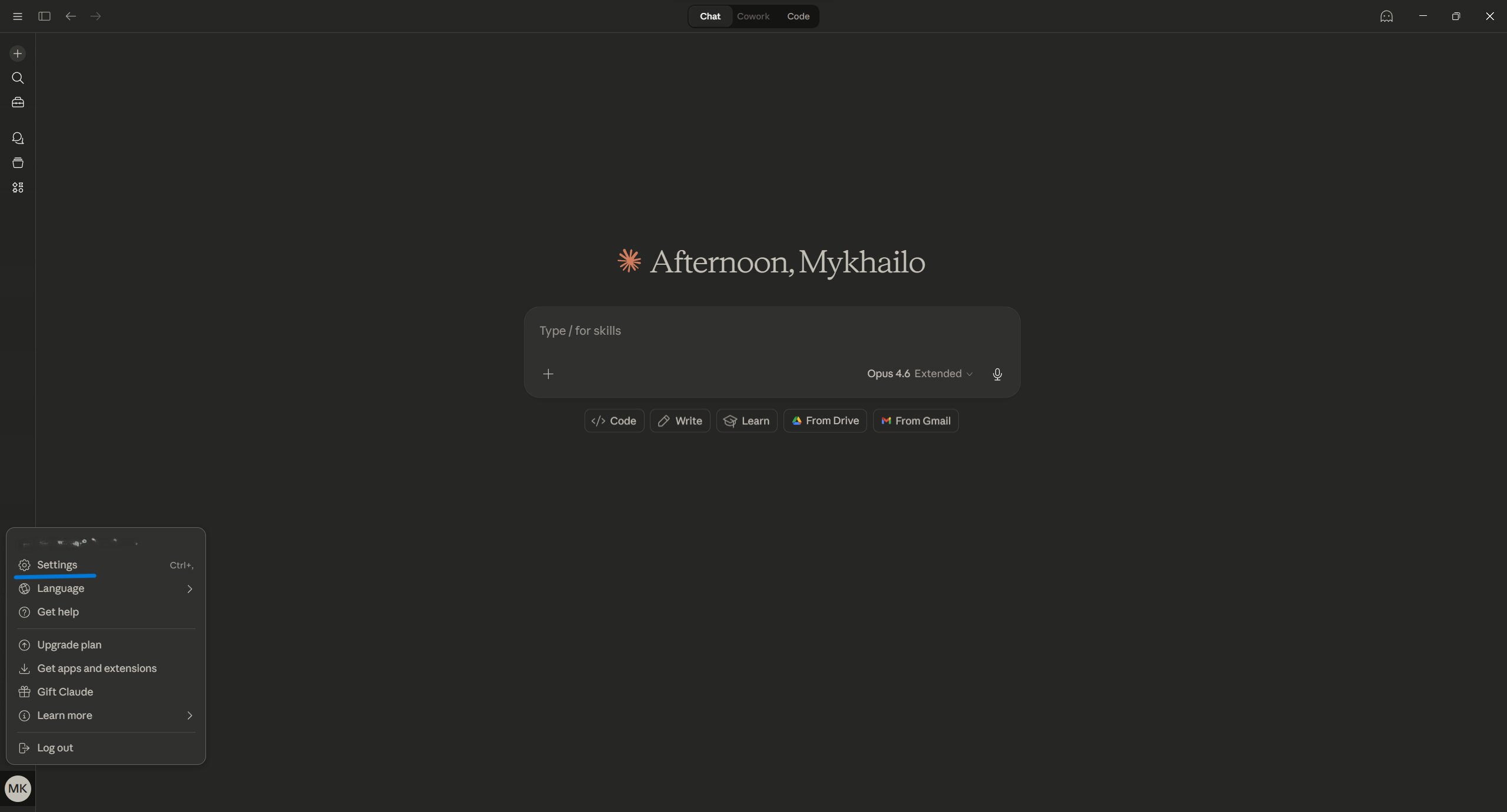
Open Settings
Open Claude Desktop. Press Ctrl + , (comma) — or click the menu icon at the bottom-left and choose Settings.
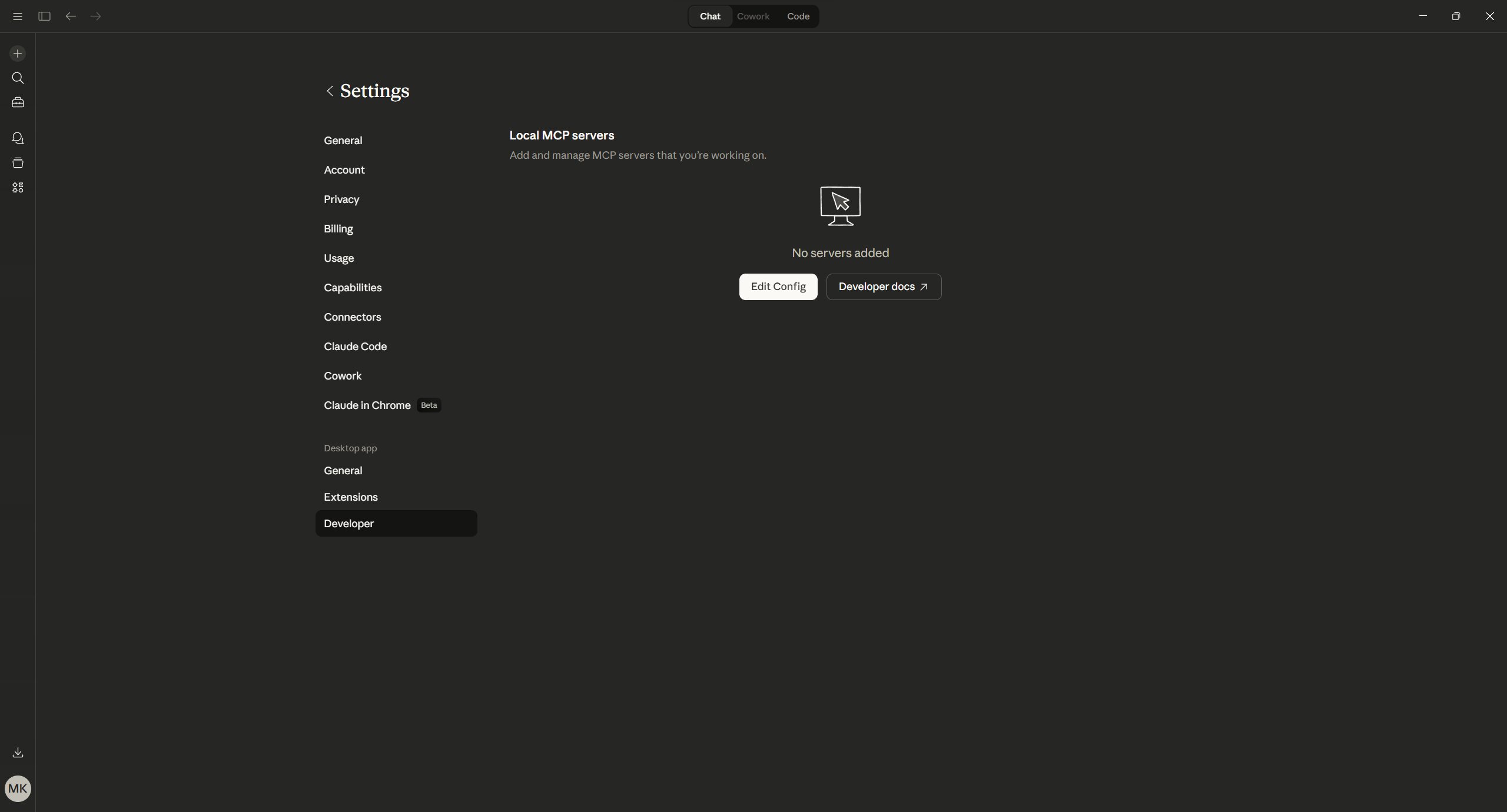
Developer → Edit Config
In the Settings window, find Developer on the left sidebar (at the bottom, under "Desktop app"). Click it. Then click the Edit Config button.
Windows: press
Win + R, type %APPDATA%\Claude, press EntermacOS: Finder → Go → Go to Folder →
~/Library/Application Support/Claude/Replace the Config File
Find the file claude_desktop_config.json in the opened folder. There are two ways:
auto_awesome Method A: File from Wizard (easiest)
- Open the Wizard and generate a config
- Click "Download file" — it will save
claude_desktop_config.json - Copy the downloaded file to this folder, replacing the old one
edit Method B: Edit Manually
- Open
claude_desktop_config.jsonin any text editor (Notepad, VS Code) - Replace all contents with the JSON below (replace
YOUR_API_KEYwith your key):
{ "mcpServers": { "automoto-data": { "command": "npx", "args": [ "-y", "mcp-remote", "https://mcp.automoto.ai/mcp", "--header", "X-API-Key:YOUR_API_KEY" ] } } }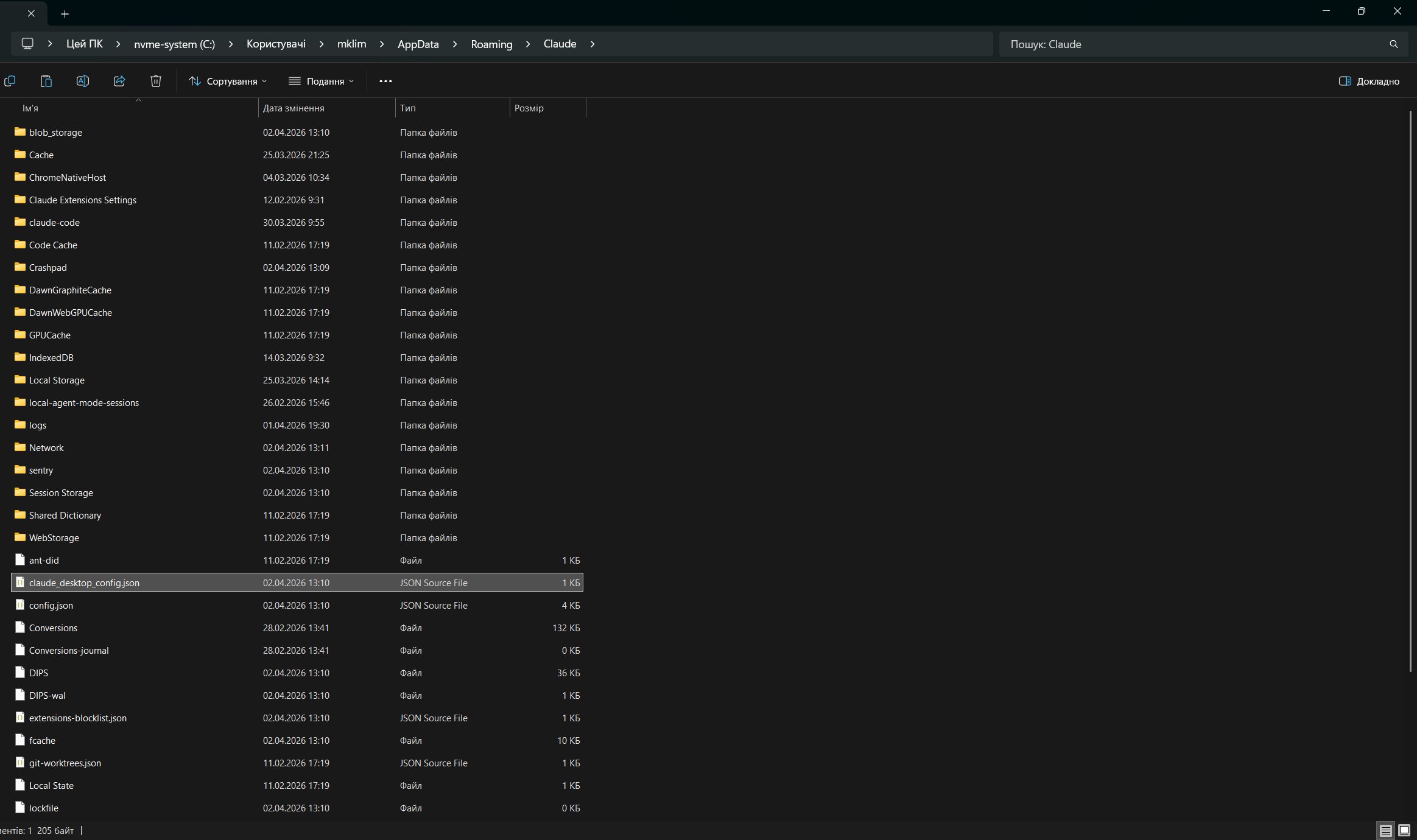
"automoto-data": {...} inside the existing "mcpServers" object, don't replace the entire file.Verify the File Contents
Open the file and make sure it looks approximately like this (your API key will be different):
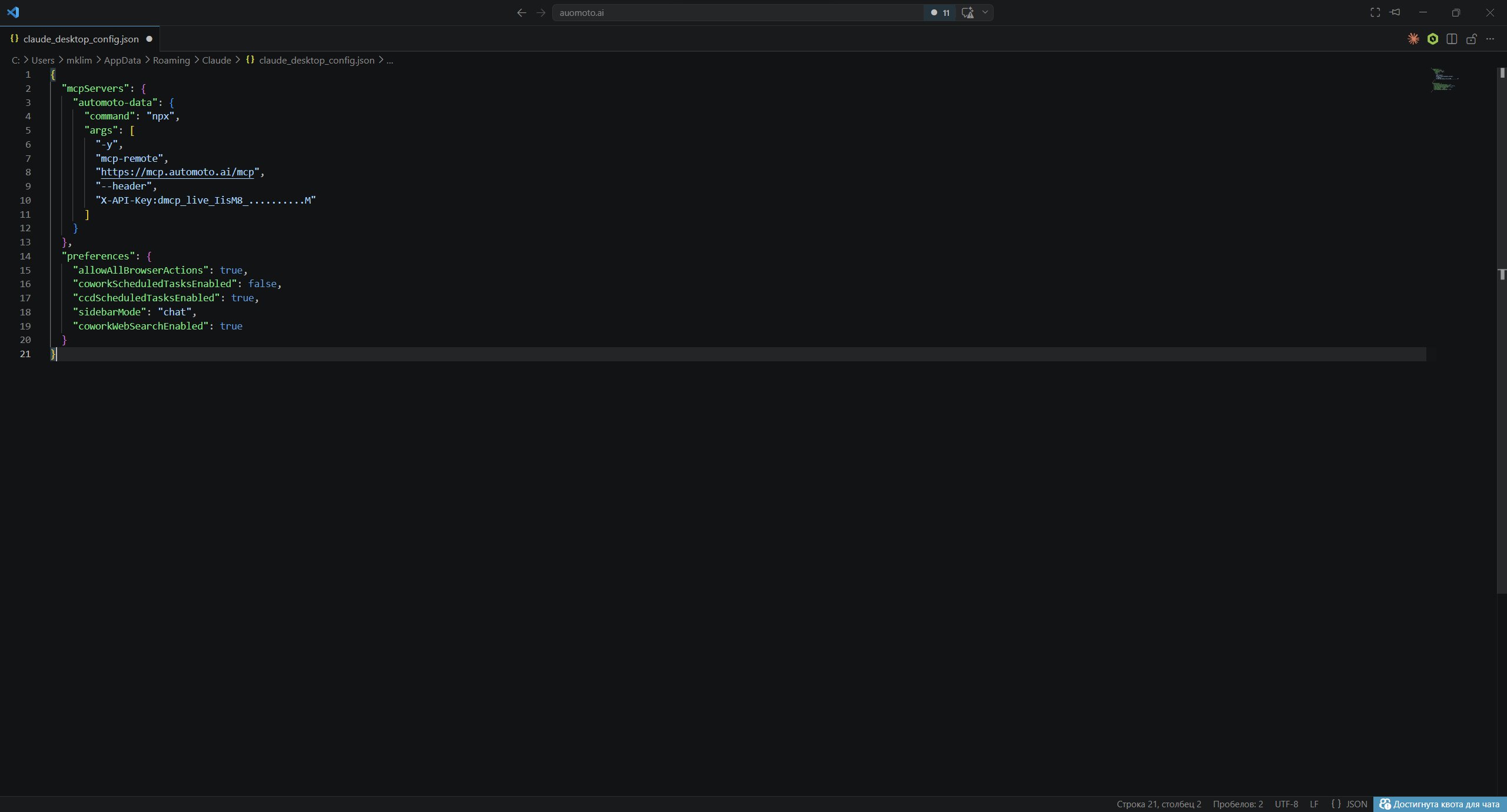
- There is a
"mcpServers"block with"automoto-data"inside - URL points to
https://mcp.automoto.ai/mcp - Your API key is pasted correctly (no extra spaces)
- JSON is valid — no extra commas or missing quotes
Restart Claude Desktop
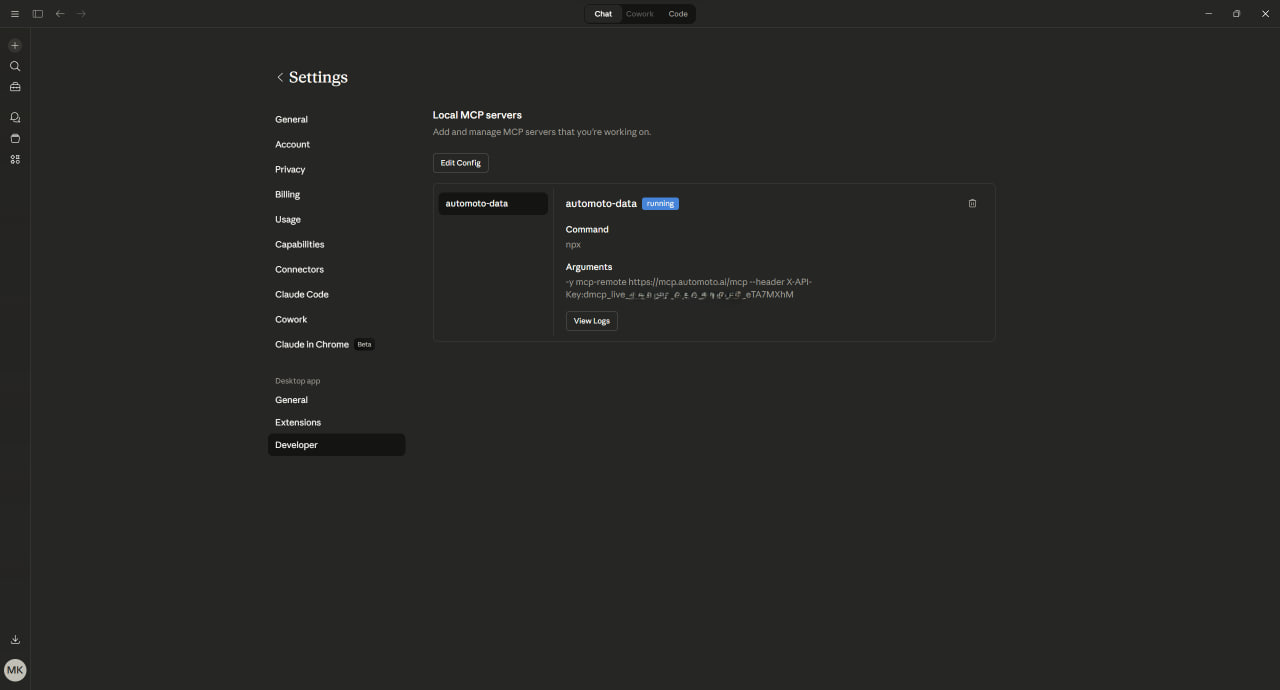
Completely close Claude Desktop. On Windows — check the system tray (near the clock). Launch Claude again. Go to Settings → Developer — you should see automoto-data with status running.
celebration Done!
Now open a new chat and try a query, for example:
Claude will automatically use AUTOMOTO MCP to fetch the data.
Claude Code (CLI)
If you use Claude Code in the terminal — one command is enough:
claude mcp add automoto-data \ --transport sse \ https://mcp.automoto.ai/mcp \ --header "X-API-Key: YOUR_API_KEY"Verify: claude mcp list
Cursor / VS Code
Create a file .cursor/mcp.json (Cursor) or .vscode/mcp.json (VS Code) in your project root:
{ "mcpServers": { "automoto-data": { "command": "npx", "args": [ "-y", "mcp-remote", "https://mcp.automoto.ai/mcp", "--header", "X-API-Key:YOUR_API_KEY" ] } } }Something Not Working?
error automoto-data doesn't appear after restart
- Completely close Claude (check the system tray near the clock on Windows)
- Verify Node.js is installed: open CMD and type
node --version - Check your JSON — even one extra comma will break the config. Use jsonlint.com to validate
- Check logs:
%APPDATA%\Claude\logs\(Windows) or~/Library/Logs/Claude/(macOS)
error ENOENT Error on Windows
Add the full AppData path to the config:
"env": { "APPDATA": "C:\\Users\\your_user\\AppData\\Roaming" }Also make sure npm is installed globally: npm install -g npm
error Authorization Error (401 / 403)
- Is the API key activated? You need to bind a card in the dashboard
- Key copied without extra spaces?
- Key starts with
dmcp_live_ordmcp_test_?